 PicPrep
Use PicPrep with any MCP client.
Connect your assistant to PicPrep on your computer. It takes about two minutes.
Available at launch. The connector, picprep-mcp, is not published yet, so the commands on this page will not work until PicPrep launches. The steps are the ones you will follow then.
What you need
- PicPrep installed, and opened once. Get PicPrep
- An assistant that can run a local MCP server.
- Node.js 18 or newer, for the
npxcommand.
Steps
- Open PicPrep, with the project you want to work on.
Every MCP client asks for the same two things: a command and its arguments.
command:   npx
arguments: -y picprep-mcp
Most keep them in a JSON file like this one. Name the server
picprep:{ "mcpServers": { "picprep": { "command": "npx", "args": ["-y", "picprep-mcp"] } } }Where that file lives, what its top key is called (
mcpServers,servers,mcp,context_servers) and whether it wants"type": "stdio"differ from one assistant to the next: check your assistant's own documentation for its MCP settings. This page cannot know them.- Restart your assistant, or reload its MCP servers, so it picks up the new one.
In a file path, ~ is your home folder: /Users/you on macOS, /home/you on Linux, C:\Users\you on Windows.
Check it works
Ask your assistant:
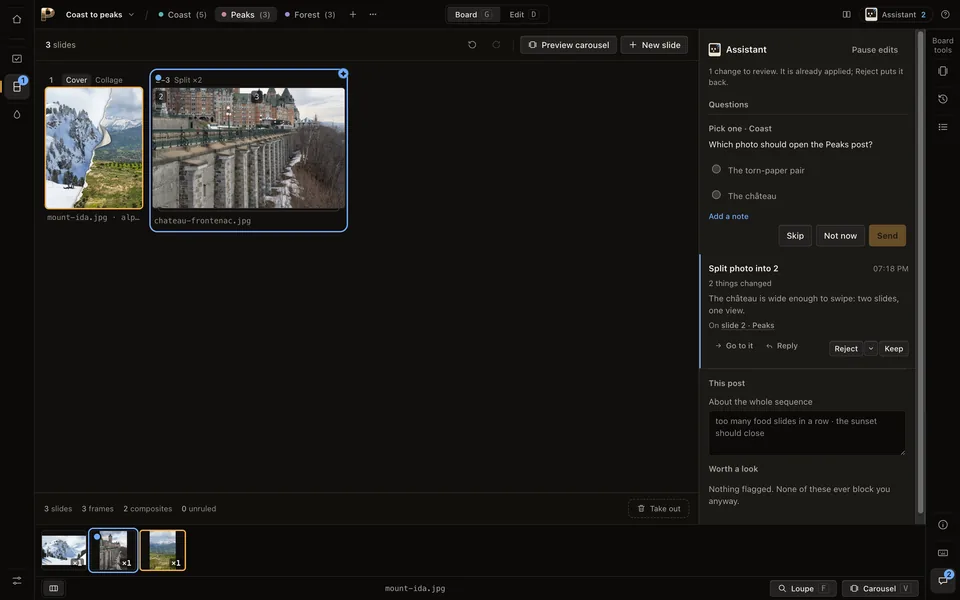
What's in my PicPrep project?It should answer with your project's posts and slides. From then on, what it changes and what it asks you arrive in PicPrep's Assistant panel, with a count on the Assistant button.
Or check from a terminal. This says where the connector looks, whether PicPrep is running, and what it would start:
npx -y picprep-mcp --checkFirst things to try
Look at the photos in my PicPrep project and pick the keepers for one post.Lay out a carousel for Instagram from the keepers.Make a version of this post for X.What it can do
- See your projects, posts and slides, and what the window shows.
- Make changes: pick photos for a post, split, stack and arrange slides. Each one is marked as the assistant's, with its reason, and can be undone on its own.
- Ask you a question. It waits in PicPrep until you answer.
What stays yours
- You Keep or Reject every change, one by one or all at once.
- It never exports, deletes, or changes your settings or your licence. It can only offer.
- You can pause it at any time from the Assistant button.
Privacy
The connector talks only to PicPrep on this computer (127.0.0.1). PicPrep uploads nothing.
What your assistant looks at, such as descriptions and pictures of the window, goes to your assistant under its own terms. Pause viewing when something on screen should stay private.
If it does not work
- PicPrep is not running
- The connector starts PicPrep the first time the assistant uses a tool. If it says PicPrep is not installed, open PicPrep once yourself, then ask again.
- It cannot see your photos
- The assistant works on projects PicPrep already has. Open the folder in PicPrep first; adding folders is yours alone.
- It can look but not change anything
- Looking works without a licence. Changes need a subscription or an active trial: start the trial in PicPrep, under Settings, Licence.
- The tools look out of date
- The tools come from the PicPrep app, not from the connector, so update PicPrep. The assistant is told when the list has changed; restart it if it still shows the old one.
Removing it
Take the picprep entry back out of the settings you added it to (or remove the plugin or extension you installed), then restart your assistant. Nothing else was installed, and your projects are untouched.
Other assistants
Claude Code, Claude Desktop, OpenAI Codex, Cursor, Gemini CLI, VS Code (GitHub Copilot), Windsurf, Cline, Zed, Google Antigravity, OpenCode, Goose, Devin CLI, oh-my-pi.